Content feed Comments Feed

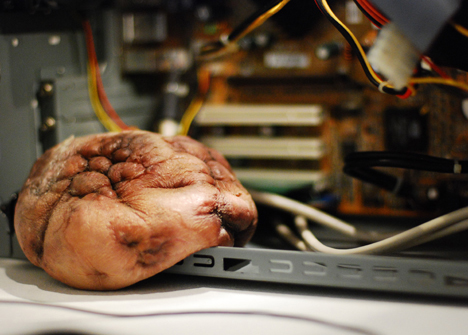
Mechanical tumor, external heart, elastic cell - CPU Load Meter

Interactive media artist Mio I-zawa’s “mechanical tumor” is a quivering hunk of fleshy, organic-looking material that expands and contracts depending on the amount of stress your computer is experiencing ....
Your Ad Here

Dell Latitude Z: 16-inch notebook weighs 4.5 pounds, charges wirelessly

Dell’s got something for the business set today in the 16-inch Latitude Z, a $2000 notebook that measures just over half an inch thick, weighs 4.5 pounds, and charges wirelessly ....
Your Ad Here

The Very First Lighter Phone SB6309

Although I fully admit to chuckling quite a bit after first seeing this cellphone with a built-in cigarette lighter, I can see some practicality with it. After all, I can’t tell you how many times I’ve heard of my smoking friends losing their lighter. I’ve been asked numerous times if I happen to have a lighter on me, despite that they’re fully aware I don’t smoke. Having a lighter built into your cellphone would come in incredibly handy. After all, your phone is almost always somewhere within reach.....
Your Ad Here

How to take Screenshots using VLC Media Player

This tutorial will teach you how to take Screenshots from the Movie using VLC Media Player


1. You need VLC Player if you don’t have it already, you download it from here:

2. Once it’s installed open a movie with VLC Player.

-Before we go further,go to VLC –> Tools –> Option –> On left side click on “Video”

How to take Screenshots using VLC Media Player

And choose where you want to save your screenshots, so you can find them, like mine is Desktop.

3. Now find the good scene on the movie and Pause it.

Go to Video –> Snapshot

How to take Screenshots using VLC Media Player

And the result:

How to take Screenshots using VLC Media Player

Add a New User Account in Windows 7

Posted by Wonderful-Tricks

Add a New User Account in Windows 7

If you’re a home user who skipped the Windows Vista release and are moving from XP to Windows 7, one thing you might want to do is create new user accounts for other members of the household. Since the interface is laid out quite differently than XP, we will take a look at user accounts in the new OS.

Several aspects of the user interface have changed from XP to Vista and Windows 7. If your computer is shared by the rest of your family, it is nice to be able to give each person their own account. However, you probably don’t want to give the same functionality to each of them. Let’s take a look at how to add a new user account, an overview of each account type, and assigning the type to each user.


Add New User


To add a new user open Control Panel and under User Accounts and Family Safety click on Add or remove user accounts.


Now click on Create a new account.


Just type in the name of the user and select the type of account. Your best bet is to make them a Standard User so they cannot make changes to system settings, delete other users important files, or change security settings.


Now when you reboot the PC you will see the new users you created at the log in screen.


Of course a user who’s account is password protected will need to log in to start their session.


Standard users won’t be able to make any important system changes without the admin password.


As Administrator you can make additional changes to the account like changing or creating user passwords.


Types of User Accounts


There are three types of user accounts and each provides the user with different levels of control over the computer.


* Administrator – The Admin account have complete control over the computer and its settings.


* Standard – Standard users can use most of the capabilities on the machine. They cannot install software, delete system files, or change settings. If you’re working in a Standard account and need to make system changes, the administrator password will be needed.


* Guest – Let’s a user have temporary access to the computer. They cannot install software, make any changes, or create a password. This is a good choice for someone to use to check their email quick or type out a document.


Here is an example of what a user with a Standard account would see if they tried to monkey around with something they shouldn’t be.


The Guest user account it off by default but you just need to go in and turn it on.


The only changes available to the Guest account are changing the picture and turning it on or off.


User Account Tips


If you’re the administrator and installing software, remember to select if you want it available for all users or only yourself.


Keep in mind that if you shut down the machine while another person is logged in, they might lose all any data they have not yet saved. Even though you get a confirmation screen, it might be worth mentioning to other users so they are aware of it, especially in a busy household.


These basic tips should help create and configure user accounts so each member of the household has their own account when working on the computer.

How to change your processor name?

Posted by Wonderful-Tricks

How to change your processor name?

Here i show you how to change processor name
See my original Processor Name is Intel(R) Pentium(R) 4 CPU 2.80GHz


How to change your processor name?

Now Go to Start > Run > type regedit >

How to change your processor name?

Then Go to

start>
run>
type regedit>
hkey_local_machine>
hardware>
discription>
system>
central processor>

on right hand side right click on processornamestring and then write anything u want in that textbox.

How to change your processor name?

modify and write what ever you want i write Super Computer Intel(R) Pentium(R) 10 CPU 9.99 GHz ;)

How to change your processor name?

See the Results
How to change your processor name?

Click to Know Source of the Content

How to clean up your hard drive to increase free space

There are many reasons why you would want to do this, such as:
  • Running out of space on your hard drive
  • System is running slow
  • System Restore points are not being created
  • Corrupted or infected System Restore points

We will address 6 areas in this tutorial.
  • Delete system temporary files
  • Delete TIF (Temporary Internet Files)
  • Delete old/infected System Restore points
  • Delete other areas where junk collects over time
  • Uninstall programs you don't need or use
  • Remove System Restore points


Areas 1, 2 and 4 can be handled manually but it's much easier and more thorough if you use one of two tools, CCleaner or ATF Cleaner. Both will delete junk files that accumulate in the system temp and temporary internet file areas as well as files from other areas, like Cookies, Browser History, MRU Cache, etc. etc.

CCleaner
This guide addresses the Cleaner and Tool areas of CCleaner. Please do not use the Registry area unless you
Know what you are doing
Have a full backup of the registry using ERUNT

Download and install CCleaner. Before doing anything else, click on Options on the left then click on Advanced and uncheck Only delete files in Windows Temp folders older than 48 hours.

Click on Cleaner on the left and look through the selections under the Windows and Applications tabs. Uncheck the ones you don't want cleaned up. For instance, on my XP SP3 system I uncheck:

Windows tab:

  • Internet Explorer - Cookies, History, Recently Typed URLs, Last Download Location, Autocomplete Form History.
  • Windows Explorer - All
  • System - Memory Dumps <- Very Important


Applications tab:

  • Firefox/Mozilla - Cookies, Download History, Internet History, Saved Form Information
  • Opera - Cookies, Internet History
  • Applications - Office XP


The entries listed under Windows and Applications will vary, depending on what is installed on your system.

Click on Analyze to see what CCleaner will delete. Once you are satisfied with the choices, click Run CCleaner to delete the files and folders listed. If you've not done this before, it can result in a significant increase in hard drive free space.

ATF Cleaner:

Download ATF Cleaner then run it. It does not have to be installed. On the Main window, select (at a minimum):
  • Windows Temp
  • All Users Temp
  • Temporary Internet Files
  • Java Cache
  • Recycle Bin


Cookies, Prefetch and History are up to you. I prefer to leave them alone as I depend on Cookies and History for web browsing. I also don't see any point in clearing Prefetch since XP will just rebuild it over time. It won't hurt, just slows things down a little for a short time.

Like CCleaner, ATF-Cleaner will delete files from the areas you check, but unlike CCleaner there is no Analyze button that allows you to see what will be deleted. Once you click the Empty Selected button, the files in the areas you checked will be deleted. Some folks prefer it because of it's simpler interface. Which one you use is a matter of personal preference.

Uninstall unneeded programs:
I'll cover three ways to do this.

Use the built in XP Add or Remove Programs Control Panel applet
Use the Tools section of CCleaner
Download, install and run Revo Uninstaller

XP Add or Remove Programs
There are two ways to get to Add or Remove Programs.

Click on Start then Run, type appwiz.cpl and press Enter or click OK
Click on Start then Control Panel (or Settings then Control Panel if using Classic mode) then double click on Add or Remove Programs.

Review the list of Currently Installed Programs. Once you have decided which ones you want to remove, click on it's name and a Change or Change/Remove button will be displayed. Click on it and follow instructions.

CCleaner Tools
Start CCleaner. Click on Tools on the left side. A list of installed programs will be displayed. As above, once you decide what you want to remove, click on it, only this time, click the Run Uninstaller button and follow instructions. DO NOT use the Delete Entry button unless you know for sure the program has already been deleted and just the entry in the installed programs area of the registry remains.

Revo Uninstaller
Revo can do many other functions besides uninstalling programs, so please be careful when using it. I will address just the Uninstaller function.

Download, install and run Revo Uninstaller. Make sure Uninstaller is selected at the top. As with the previous uninstallers, review what is shown and decide what you want to remove. Right click on each one in turn and select Uninstall then follow instructions.

The primary advantage Revo has over the other methods is that it will also scan the registry and remove any remnants of the program you just uninstalled. For this reason, I strongly urge you to make a full backup of the registry using ERUNT BEFORE using Revo.

Remove System Restore points
There are two ways to do this.

Delete all System Restore points and create a new one (best choice if malware is present)
Delete all but the most recent System Restore point (just free up hard drive space)

To delete all System Restore points, do the following:

  • Click on Start, All Programs, Accessories, System Tools and finally System Restore.
  • Click on System Restore Settings on the lower, left side.
  • Check Turn off System Restore on all drives, then click Apply and wait for it to complete. This will delete all existing restore points.
  • Uncheck Turn off System Restore on all drives, then click Apply and wait for it to complete. This will create a new System Restore point.
  • Close the System Properties window.


To delete all but the most recent System Restore point, do the following:

  • Open My Computer.
  • Right click on your XP boot drive and select Properties. Normally this will be C:.
  • Click on the Disk Cleanup button. The Disk Cleanup window will open. Wait for it to finish then the main Disk Cleanup window will open.
  • Click on the More Options tab.
  • Click on the Clean up... button under System Restore.Click Yes when you get the Are you sure you want to delete all but the most recent restore point prompt
  • Close all windows you opened for this procedure.


Wii Cyberbike: roadtrip to nowhere

Posted by Wonderful-Tricks

Wii Cyberbike: roadtrip to nowhere

I guess the whole point of the Nintendo Wii is to get you off your ass. This latest Wii accessory/game keeps you on your butt, but you still get to move. Sort of. It's the Cyberbike from Bigben Interactive, a European game accessory company. The Cyberbike is a full-size stationary bike - from its looks, not really Gold's Gym quality, but rather lightweight home basement quality. Pedal all you want, and you'll always wind up where you started — talk about an exercise in futility.


By pedaling, you get a workout. Two thumbs up for that. But since that's insanely boring, the Cyberbike lets you save the planet. The bundled game takes you through imaginary scenes where you mop up pollution. When the planet is all rainbows and sparkles again, you can also plug the bike into Mario Kart Wii.

If the Cyberbike came attached to an electric generator, so you can use pedal power to charge your electric toothbrush or something, I'd be more impressed. Even better, I'd give my Cyberbike to Lance Armstrong, and let him power Connecticut.

The Cyberbike will be available in Europe in January '10. Pricing not announced, but it's probably more expensive than an actual bicycle.

Click to Know Source of the Content

Samsung Launches “Blue Earth”- the First Full-Touch Eco-Friendly Mobile Phone

Samsung Introduces “Blue Earth”- unveil the first solar power-driven Full-Touch Samsung Introduces “Blue Earth”- mobile Phone, the Blue Earth. Because you can guess, it features a solar panel, located taking place the back of the phone. According to the Korean manufacturer, it generates enough power just before make call anytime, everywhere. The Samsung Blue Earth is also equipped with an ‘Eco-Mode’, for set screen clarity and backlight duration, and a Bluetooth power efficient mode.


This eco-friendly mobile phone facial appearance an “Eco-Walk” function feature a pedometer for calculate CO2 emission reduced by under your own steam as oppose to motor transportation. ‘Eco-Walk’ will also tell you how many trees you save. Seoul, Korea, February 12, 2009 – Samsung Electronics Co.

Ltd. nowadays unveil the inventive solar power-driven full-touch screen mobile phone “Blue Earth”, alongside Samsung’s vision for environmental sustainability. Underneath the slogan: “The Blue Earth daydream: Eco-living by means of SAMSUNG mobile phone”, Samsung reinforced its commitment to protect the environment through the design of eco-friendly goods products and a programmed of behavior for its consumers. It will be showcased at Mobile World Congress 2009 for the first time.

Click to Know Source of the Content

USB Foot Switch - Control your PC with your big toe

The USB foot switch provides a more comfortable and convenient way to control the computer by foot. The pedal can be pre-programmed unique key or multiple keys by the bundle software. You can also connect more than one foot pedal to a computer for different key combinations. Share on Facebook
Price: US$18.00


Features:
Pre-program key functions on the foot pedal by software
Uses the OS built in HID drivers, no driver require
Support multiple foot switch
Support Windows 2000/XP/Vista
Dimension: 61 x 99 x 37mm (approx.)
Weight: 110g

Package Contents:
USB Foot Switch
CD Driver

Click to Know Source of the Content

The see-through Nooka Zaz

Posted by Wonderful-Tricks

The see-through Nooka Zaz

Matt Waldman at Nooka has done it again. The Zaz is a see-through watch with an LCD sandwiched onto a transparent surface. You tell time by counting the blocks and reading the growing minutes bar and it comes with a black, silver, or white band.

At $380 it’s a bit pricier than some Nooka models but it’s still badass. They’ll be available in November.
Also, the last secret word is WARFARE.


Click to Know Source of the Content

Flash Survivor™ 64 GB USB Drive

Posted by Wonderful-Tricks

Flash Survivor™ 64 GB USB Drive

Flash Survivor™ is an extremely durable, water resistant, drop-tested flash USB memory drive. By design it is perfect for transporting valuable data such as personal files, photos and applications without having to worry about damage or loss of data due to the elements.


Features:
Encased in extremely strong CNC-milled, anodized aircraft-grade aluminum.
Water resistant to 200M through the use of a EPDM waterproof seal.
Protected from vibration or impact damage through the use of a molded shock dampening collar.
Plug-&-Play with any USB 2.0 certified peripheral computer port (backward compatible with USB 1.1).
USB extension cable and Dog Tags included.
Protected by a Limited 10-year Warranty

Click to Know Source of the Content

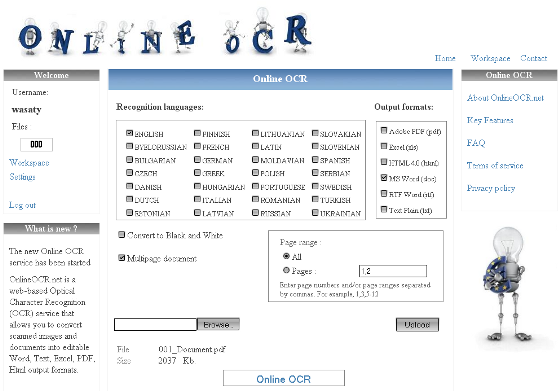
Online OCR (Optical Character Recognition ) - onlineocr.net

Online OCR (Optical Character Recognition )is a free service that takes almost any scanned image of a document or a PDF and converts them into editable Word, Text, Excel, PDF or Html files. The service is fast and mostly precise, but it requires registration which takes a few minutes

Visit The Site

Click to Know Source of the Content

Want to describe stories about your bad dates - myveryworstdate.com

This Web site does the obvious; it describes stories about bad dates that people have been on. Some of the stories are sad while other are downright funny. The stories support comments, so you can either share some tips or use it to ridicule the victims. Readers can also turn in to contributors by sending their own stories in


Click to Know Source of the Content

BeMagazine - Blogger Template

Posted by Wonderful-Tricks

BeMagazine - Blogger Template

Bemagazine blogger template, has four column with minipost layouts, suitable for business blog.
Features :
Ads ready
Tweet meme button
Bookmarks button
RSS Subscribe button


Demo | Download | Installation Setting

Google Docs gets Shared Folders

Posted by Wonderful-Tricks

Google Docs gets Shared Folders

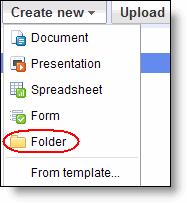
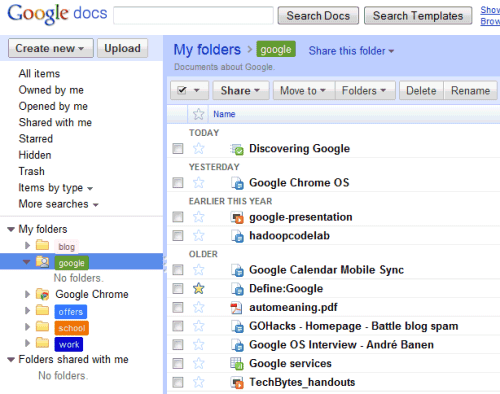
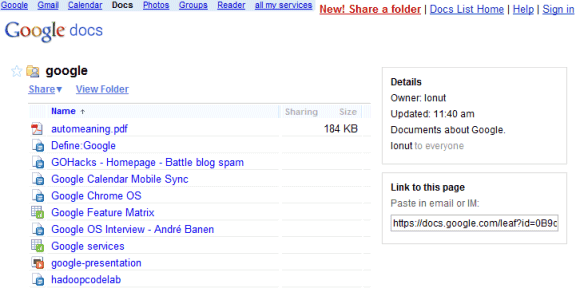
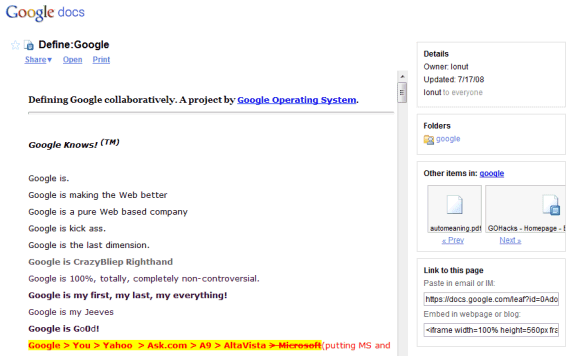
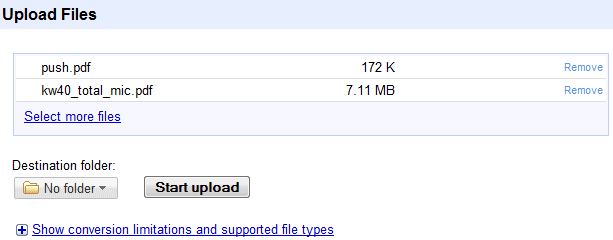
Google Docs has a new interface and an important new feature: sharing folders. You can now share folders with your contacts and even make some of your folders public. If you allow anyone to view or edit a folder, Google generates a publicly accessible URL for a page that lists all the files from your folder.


"When you share a folder, the new permissions are pushed to all sub-folders and docs within the folder. Normally this happens quickly, but occasionally, it could take a couple of minutes," explains Google.

Google Docs gets Shared Folders

Google Docs gets Shared Folders

Google Docs gets Shared Folders

Google Docs gets Shared Folders

Click to Know Source of the Content

Gmail Helps You Avoid Emailing the Wrong Bob

One of the greatest sources of embarrassment, or worse, when using email comes when you send a message to the wrong person accidentally. (Hence the proliferation of those annoying “Delete this message if you’re the wrong recipient” email signatures.) Google added a new feature to Gmail today that should help you catch those errors before hitting “send.”


“Got the wrong Bob?” has been added to Labs, the section for experimental features that may get added to standard Gmail. It’s useful during those times where you’re writing an email to a large group of people, when it’s easy to let a mistake slip through. Using the same technology behind Gmail’s “Suggest more recipients” feature, the webmail program tracks which people you normally email as a group (say, a team at work or a set of friends), and will flag the email if you’ve included someone who seems like a mistake. Google has also given “Suggest more recipients” the new name of “Don’t forget Bob?” which is more catchy, and makes it an obvious pair with the new feature.

Now, if you’re only sending the email to one or two people, Gmail can’t help you if you get it wrong.

This is the latest in a number of Gmail Labs features that help users avoid various possible mistakes while using email.

Click to Know Source of the Content

How to show the date of every post, posted in the same day

When you post more than one articles in one day, you will have only one post with its date. It is your last post. That’s not a problem because by default, it will be like that. Blogger cannot display the date of post in the same day.

Anyway, if you are interested in displaying the date of post in all posts, there is a simple hack to display the date of post.


Below are the steps:
  • Please log in to blogger with your ID
  • Click Layout
  • Click Edit HTML tab
  • Check the small box next to the text “Expand Widget Template"

  • Find this code :

    <b:if cond='data:post.dateHeader'>
    <h2 class='date-header'><data:post.dateHeader/></h2>
    </b:if>


  • Remove the code and replace with this one:

    <b:if cond='data:post.dateHeader'>
    <script>var ultimaFecha = &#39;<data:post.dateHeader/>&#39;;</script>
    <h2 class='date-header'><data:post.dateHeader/></h2>
    <b:else/>
    <h2 class='date-header'>
    <script>document.write(ultimaFecha);</script>
    </h2>
    </b:if>


  • Click "SAVE TEMPLATE".
  • Done.


Now, all of your posts in the same day will include the date. It’s easy, isn’t it?

Click to Know Source of the Content

Blogumulus by Wonderful-Tricks

Followers